Design Protocols 🠖 interface documentation
Network Composer
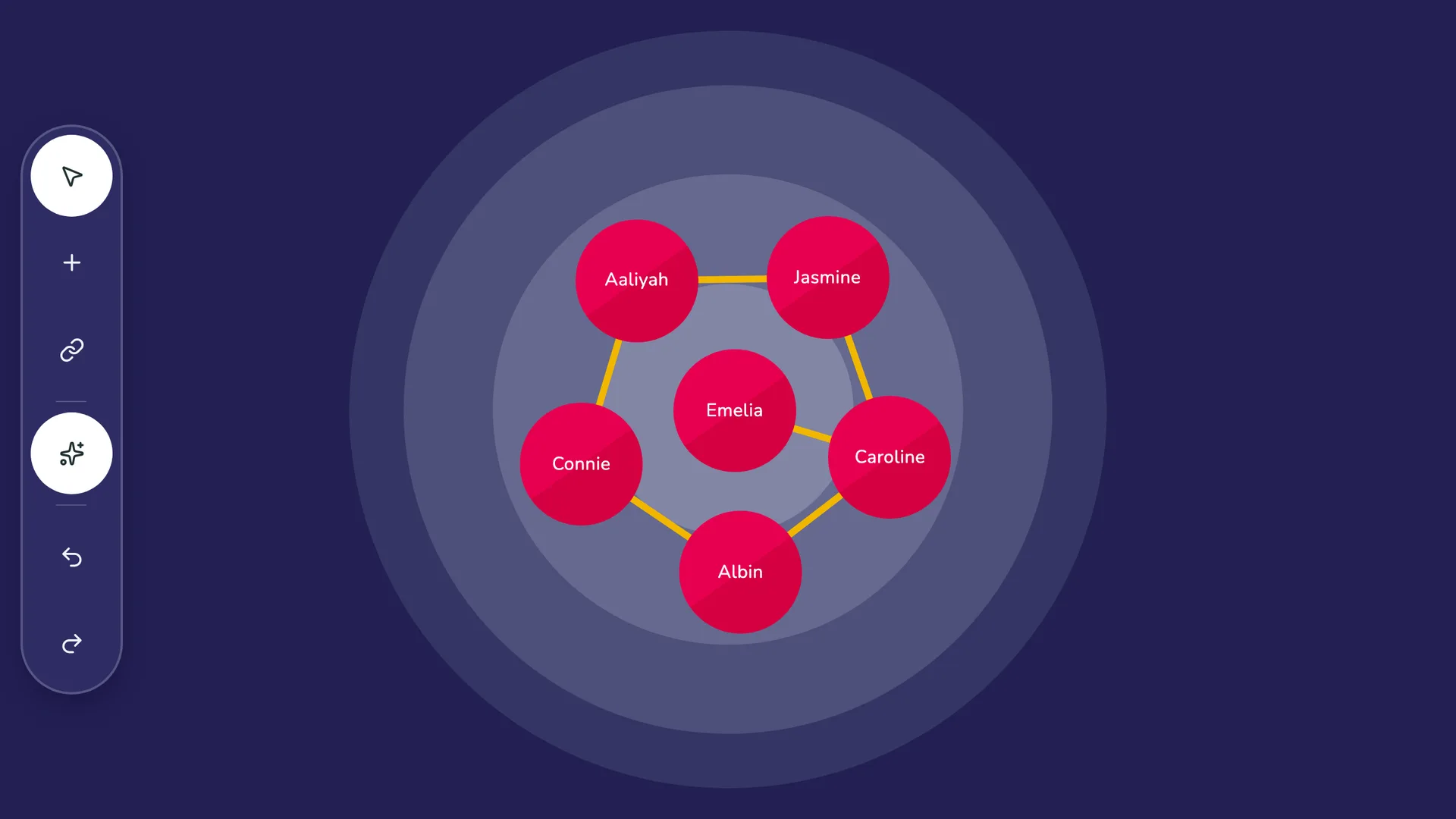
- Type
- Free-form network builder
- Creates
- Nodes of a single type, edges of multiple types, and node and edge attribute data
- Uses Prompts
- No
- Schema
- v8+
- Available In
- ArchitectInterviewerFresco
The Network Composer is a free-form, single-screen interface for building a whole personal network in one place. Where most Network Canvas Interfaces lead through one task at a time — naming alters, interpreting them, then drawing ties — the Network Composer brings these together onto a single canvas, so you can create alters, record their attributes, draw relationships of several types, and reposition everything as the picture develops.
It is best thought of as a network "notepad". Because it is dense and fast — with a tool palette, an inspector, keyboard shortcuts, and undo/redo — it is designed to be driven by a researcher or interviewer, either alongside a participant or working alone to sketch, pilot, or model a network, rather than handed to an unassisted participant.
How it works
The Interface presents a single canvas with a floating tool palette. Each tool stays active until you switch to another, so you can repeat an action without selecting it again:
- Select / Move selects alters and ties, and repositions alters by dragging. Selecting one opens the inspector, where you can fill in its attributes; clicking an empty part of the canvas clears the selection.
- Add Node opens a name field beside the palette. Type a name and press Enter to add the alter — it is placed on the next free spot of a grid (or arranged by the automatic layout, when that is on) — and the field stays open so you can add several in a row.
- Draw Edge draws relationships. A single button opens a menu of the stage's edge types; pick one — the button adopts that type's colour while it is active — then tap one alter and then another to connect them. Tapping the same pair again removes that tie, and tapping the first alter a second time cancels a half-drawn one. Ties are drawn in their type's colour, and the tool is only shown when the stage defines at least one edge type.
- Auto-layout is a switch that turns a force-directed arrangement of the network on or off at any point during the interview. Its starting state is a default you set in Architect — unlike the Sociogram, the mode is not fixed at design time — and whichever way it is switched, that choice is remembered for the stage.
- Groups shades the alters that share a value of a single categorical variable — chosen in Architect — as coloured convex hulls behind them, making clusters such as "household" or "friendship group" easy to see. The hulls are always visible once the variable is configured, and the automatic layout gently pulls members of the same group together. The tool lists the groups alongside their colours; pick one — the button adopts that group's colour while it is active — then tap an alter to toggle its membership.
- Undo / Redo reverse and replay any change — adding or removing alters and ties, editing attributes, group membership, and repositioning — and are also available with the usual keyboard shortcuts.
To assign groups quickly, you can select several alters at once — by shift-clicking them, or by drawing a freehand lasso around them — and then add the whole selection to a group in one step, using the colour-coded buttons that appear beneath the canvas. The same multi-selection can also be deleted together.
The attributes shown in the inspector are configured in Architect: one set for the alters, and an optional set for each edge type. Each attribute pairs a variable with the input control used to collect it, plus an optional label to caption the field (the variable's name is used when no label is given). The name variable filled by the Add Node field, the variable that stores each alter's position, the available edge types, and the categorical variable drawn as group hulls are all set up there as well.
Best Practices
Use the Network Composer when you want to build and edit a whole network from a single screen — for example, an interviewer working through a participant's network in conversation, or a researcher sketching a network while piloting a study.
A clustering, on-screen picture can shape what people report, and tends to draw attention away from unconnected alters. Prompt explicitly for alters who have no ties, so that isolated members of the network are not overlooked.
Customize the background — concentric circles or an image — to orient placement, for example using rings to suggest closeness. Position is stored as raw coordinates, so treat any spatial meaning as a cue for discussion rather than a measurement.
Try to Avoid
Avoid handing the Network Composer to an unassisted participant. It is a dense power tool intended for researcher- or interviewer-led use, not a guided, step-by-step participant task.
Avoid treating where alters sit as if it were measured data. On-screen position is soft and is interpreted differently by different people. If ring or zone membership matters to your analysis, capture it as an explicit attribute instead of inferring it from coordinates.